The LiveHelpNow Sendinblue integration is retired. What it did, and how to send live chat contacts to email marketing today with Mailchimp, webhooks or the REST API.
Summarize with AI:ChatGPTPerplexityGoogle AIClaude
Updated November 2026. The Sendinblue integration described below is retired and no longer offered; Sendinblue is now called Brevo, and LiveHelpNow does not offer a Brevo integration.
LiveHelpNow live chat collects useful information about your customers. This post used to explain how to send chat contacts to a Sendinblue list for follow-up marketing, business analytics and upsell and cross-sell campaigns. We keep it as the record of that integration and to show what to use instead.
What to use now
- Mailchimp. The email marketing integration that is live today. Use it to send live chat contacts to a Mailchimp audience.
- Outbound webhooks. LiveHelpNow can post chat, ticket and knowledge base events to a URL you choose, with retry, so another tool, such as your email platform, can pick up new contacts. Chat webhooks are an Enterprise feature; ask us what your account includes.
- REST API. Read chats, visitors and CRM contacts from the LiveHelpNow API and push them to any email platform with your own script or an automation tool.
See every live connection on the integrations page, or book a demo to talk through your setup.
How the Sendinblue integration worked (for the record)
These were the steps while the integration was offered. They no longer apply.
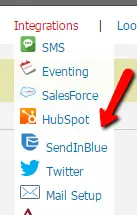
- Log in to LiveHelpNow and go to Admin Panel > Integrations > SendInBlue.
- Enter your V2 SendInBlue API key.
- Click "Save API Key".
- Click the "Refresh" button.

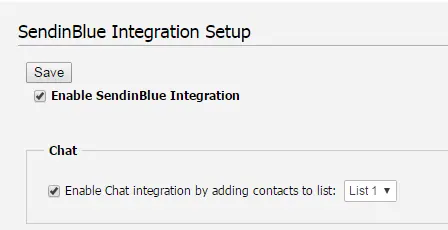
- Enable the SendInBlue integration and select the list that receives LiveHelpNow contacts.
Collect the email address before the chat starts
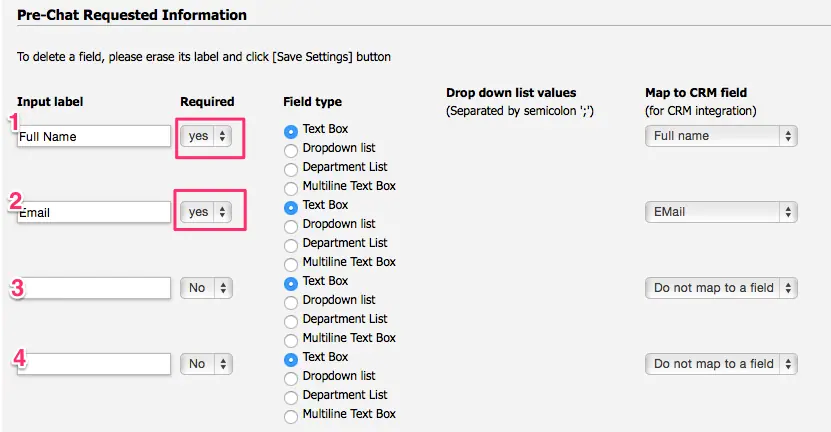
Whatever tool receives your chat contacts, it needs at least an email address. Ask for it in the pre-chat window: Admin Panel > Chat system > Customization > Pre-chat requirements.
See more LiveHelpNow live chat integrations.
Frequently asked questions
Does LiveHelpNow still integrate with Sendinblue or Brevo?
No. The Sendinblue integration is retired, and LiveHelpNow does not offer a Brevo integration. Sendinblue renamed itself Brevo in 2023. To move chat contacts into email marketing today, use the Mailchimp integration, outbound webhooks or the LiveHelpNow REST API. The integrations page lists every live connection.
How can I send live chat contacts to an email marketing list now?
Use the Mailchimp integration, the email marketing integration that is live today, to send chat contacts to a Mailchimp audience. For another email platform, use outbound webhooks on chat and ticket events or the REST API to pass contacts on with your own script or an automation tool.
What information must a chat collect before a contact can be added to an email list?
At minimum, the visitor's email address. Ask for it in the pre-chat window before the conversation starts, under Admin Panel, Chat system, Customization, Pre-chat requirements, and make it a required field, so every chat visitor can be passed to your email list for follow-up.